Installing 25 client
-
Download and install the DJI phantom 4 (white controller) drivers: https://www.robomaster.com/en-US/products/components/detail/2610#:~:text=DJI Phantom 4 Drivers_1.2_Installer
- Once the exe downloads, run it. The buttons to press should be pretty self-explanatory
-
Download the 3v3 client software: https://www.robomaster.com/en-US/products/components/detail/5663#:~:text=RoboMaster 2025 Mecha Master College Alliance 3V3 - Event Engine Contestant Software
-
Once it downloads, extract the 7zip (select the file, right click, extract all)
-
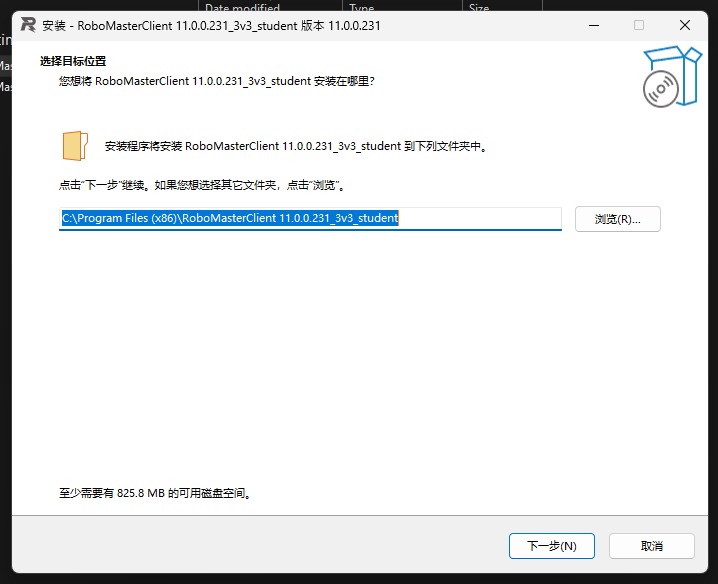
Then run the exe, and accept the default settings. The buttons will be in Chinese, but the button to press should be highlighted in blue. It will install in Program Files x86, and we will have to move it after it finishes. When it is done installing, it will run the client, but it won’t work yet. The terminal that it starts with will have errors, and you are unable to change the language out of Chinese, and various other things won’t work. Alt-F4 out of the client when it pops up.
-
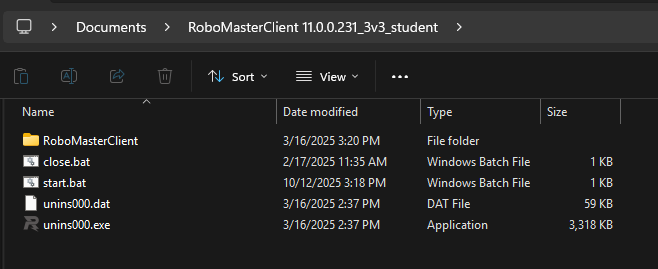
After it is done installing, go find where it installed to in Program Files x86. Click the
RoboMasterClient 11.0.0.231_3v3_studentfolder (not theRoboMasterClientfolder, the one above it) Ctrl-X to cut it, navigate to Documents, Ctrl-V to paste it there. This will move it to Documents, and when you are done, the top bar should showDocuments>RoboMasterClient 11.0.0.231_3v3_student.
-
-
Grab a VTM2 receiver, a power block for it, and a USB C cable (from the box labeled VTM Receivers)
-
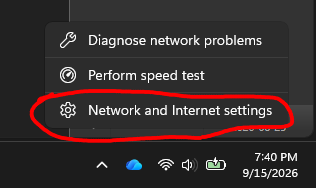
Right click on the wifi icon in the bottom right corner
-
Select
Network and Internet Settings -
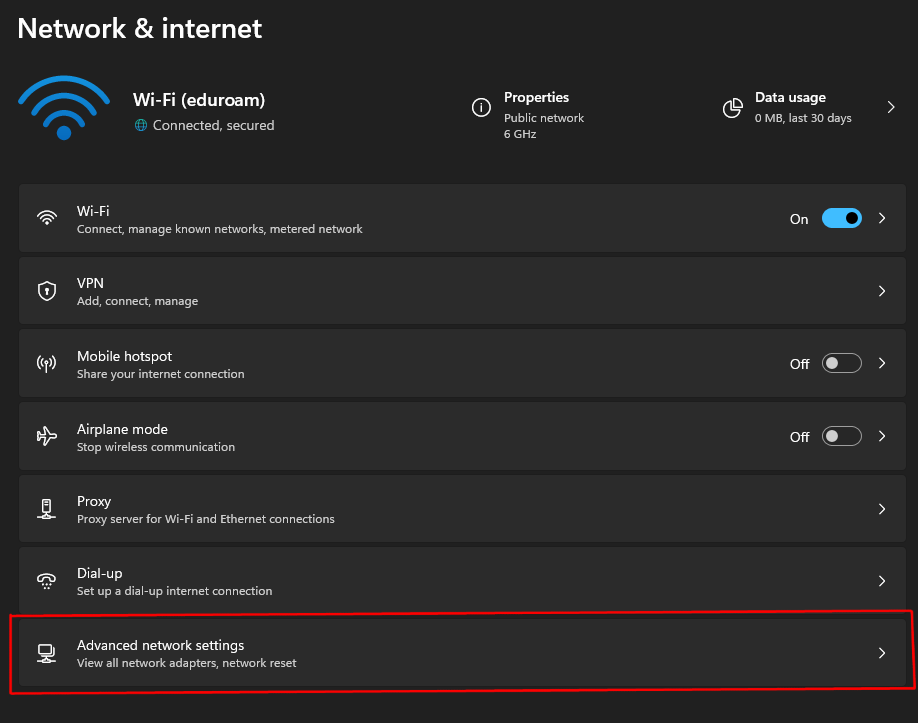
Click
Advanced network settings -
Plug the USB C into the VTM receiver and your computer, THEN plug the VTM receiver into power using its power block
- If you do this backwards, the receiver will show up as
LOST DIRfolder and it won’t work until you power cycle the VTM receiver
- If you do this backwards, the receiver will show up as
-
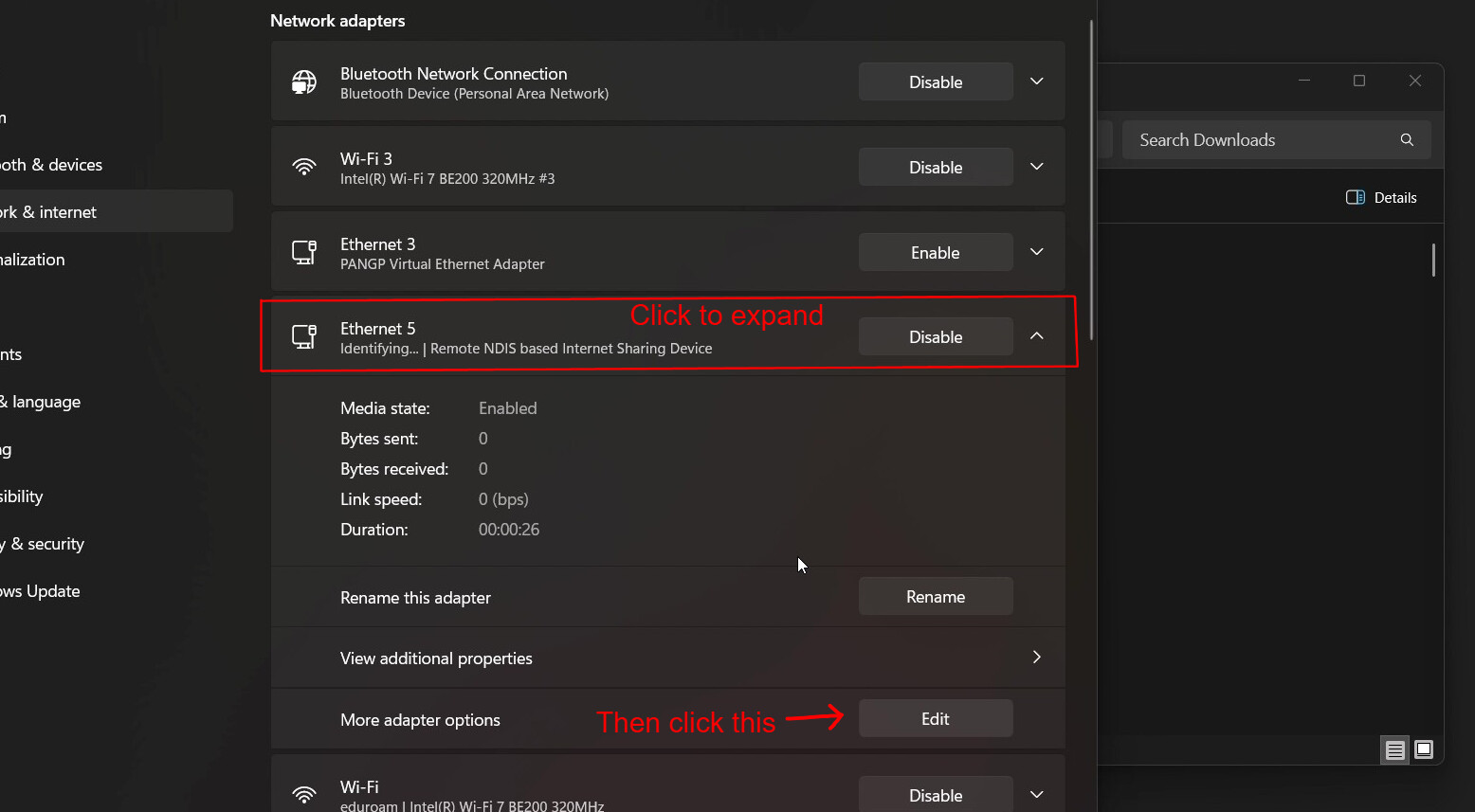
A new Ethernet should have popped up (it may take a couple of seconds), and it should say
Identifying...or something. Click on it to expand its dropdown, and pressEditnext toMore adapter options -
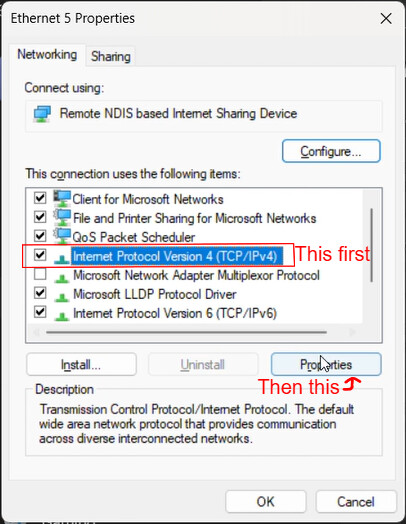
Click
Internet Protocol Version 4 (TCP/IPv4), then clickProperties -
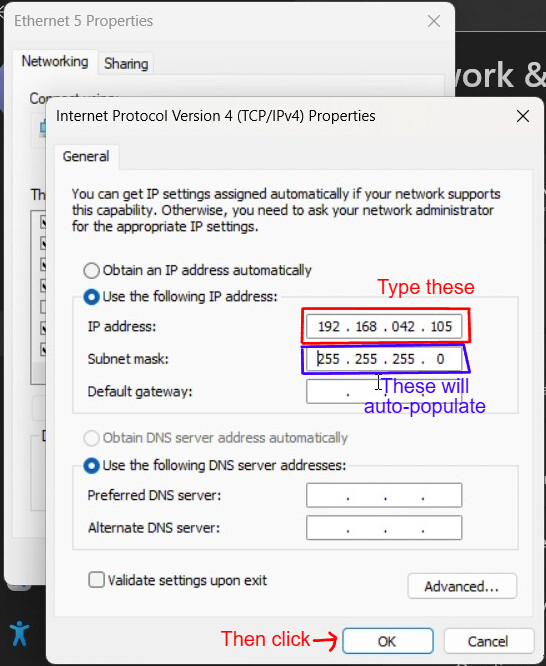
Enter
192.168.042.105into the IP address, then pressOK
-
Running 25 client
Use start.bat from step 2c to start the client, and use close.bat when you are done. If it is in Chinese when you launch, click the dropdown in the top right corner to change it to English. If you just alt-f4 the client will still have some stray processes still running, so you should use close.bat to make sure all processes are killed. Press p to choose the robot. Even if you aren’t trying to connect to a server, press log in to connect to the vtm. If the vtm doesn’t work right (and you can’t see the robots pov), check if the IP address set in step 3g needs to be re-entered (sometimes windows just forgets you did this and will make you do it again). If you are connecting to a server on someone else’s computer, join their computer’s mobile hotspot.
Installing 25 server
-
Set up your computer’s ‘mobile hotspot’
-
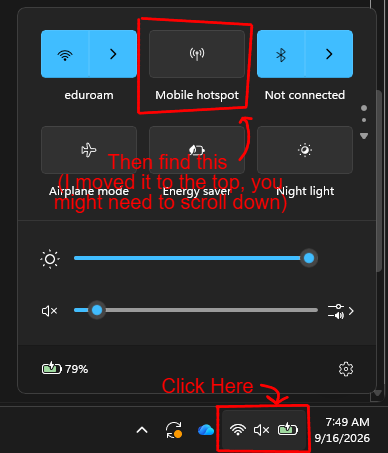
Click the wifi/sound/battery menu, find
Mobile hotspotin the list, right click it and chooseGo to settings -
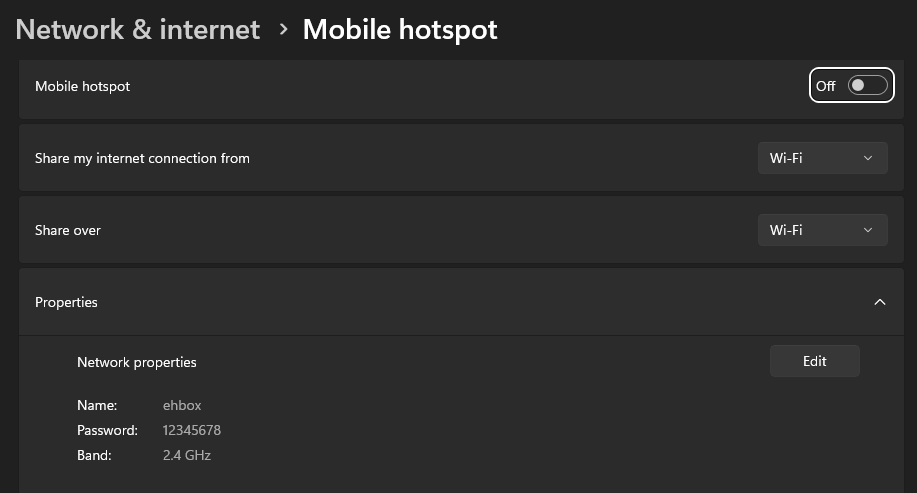
Change the network properties to have the (super secure) password
12345678and make sure the band is2.4 GHz. I named my hotspotehboxbut it can be whatever. This is the name of the network the robots and clients on other computers will connect to. The robots will always use a password of12345678, so it needs to be12345678.
-
-
Download the 25 server: https://www.robomaster.com/en-US/products/components/detail/5663#:~:text=RoboMaster 2025 Mecha Master College Alliance 3V3 - Event Engine Referee Side (including server) software
-
Extract the 7zip that downloads.
Running 25 server
-
Run the
RoboMasterEngine.exefrom the extracted 7zip. It will pop up with Chinese text and unfortunately there isn’t a convenient dropdown that turns it into English. -
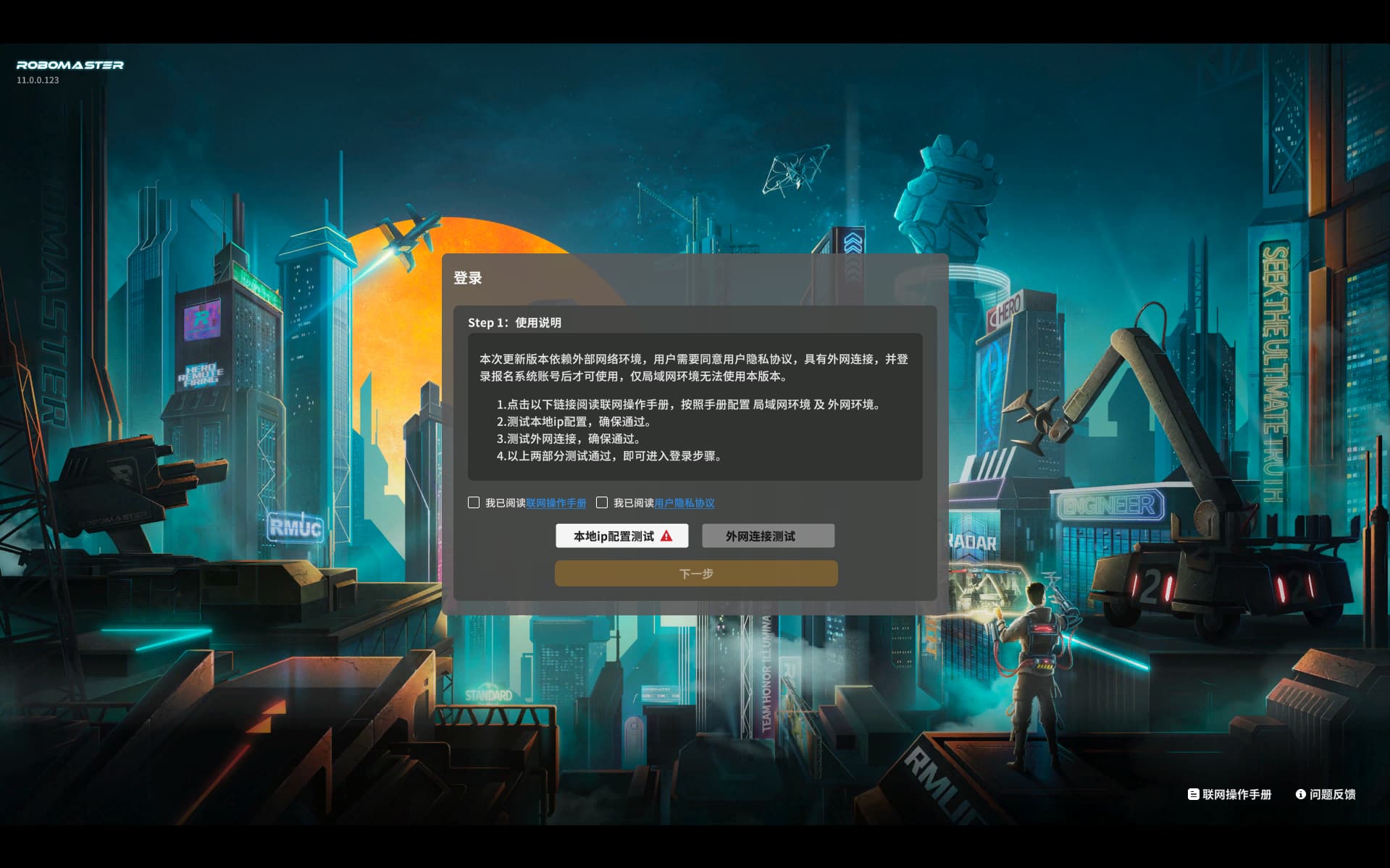
Click the two checkboxes, and if the left white box still has its red
!in a triangle, turn on your mobile hotspot, and click the orange button. -
After the orange button there is a second page, where it gives more Chinese text and another orange button. Turn off your mobile hotspot before pressing this orange button.
-
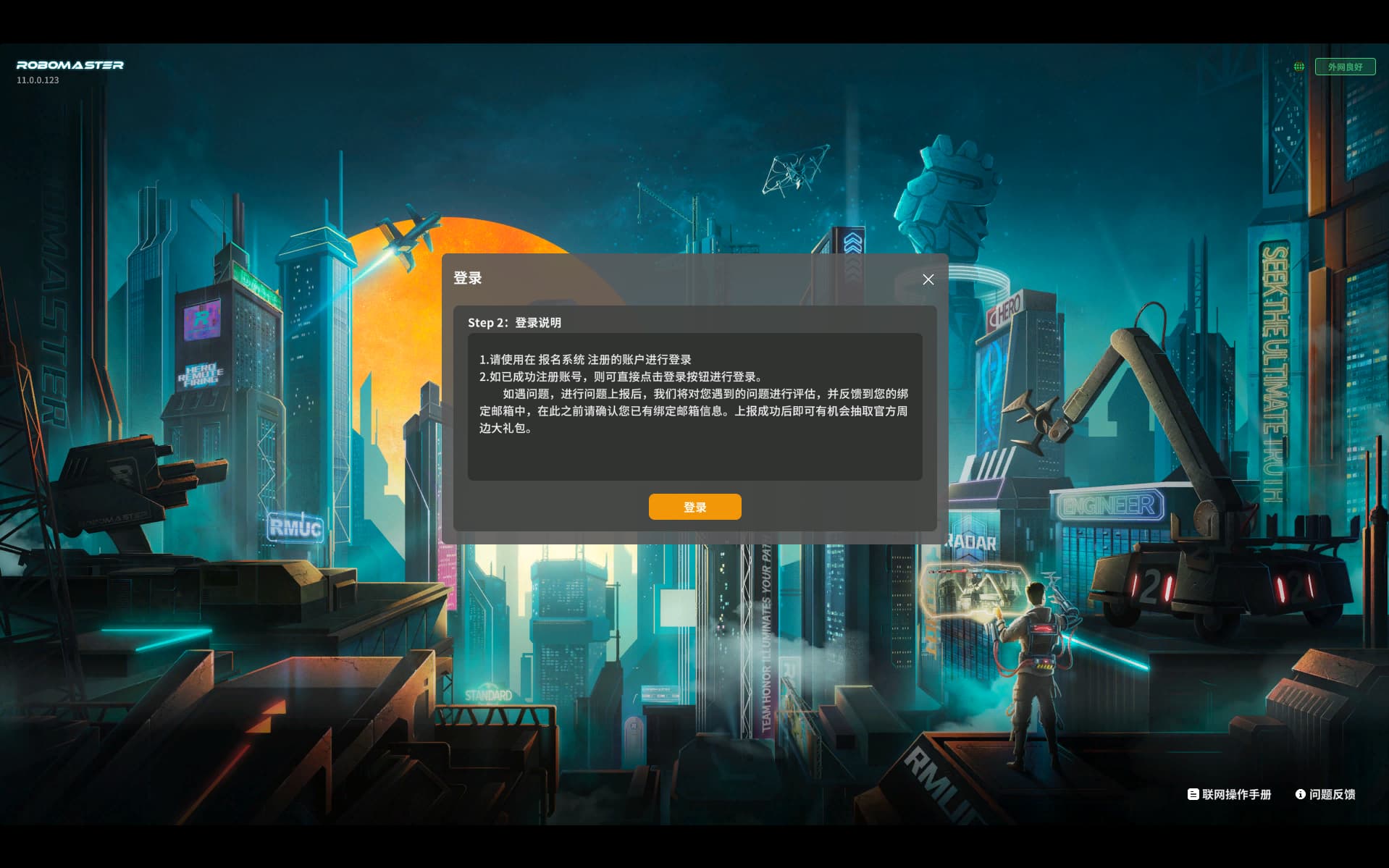
After pressing the orange button, if you haven’t signed into the server recently (yes the server requires signing in) then a black screen with
ROBOMASTERwill pop up -
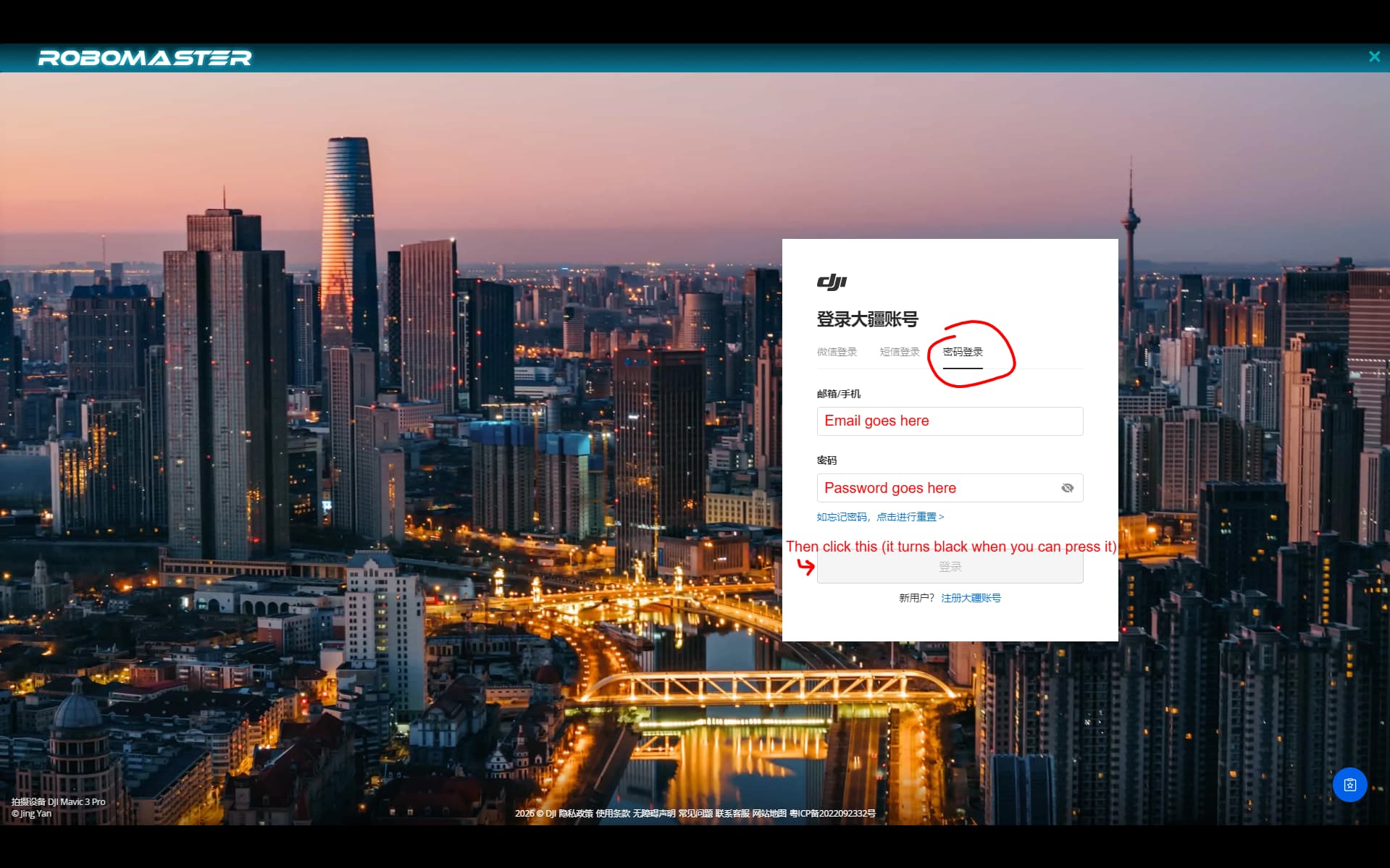
Once it loads, click the third option, and enter an email and password for a DJI account if you have one. When you press the submit button, it may take a while to sign in. If you don’t have an account, register here: https://account.dji.com/register?actionType=register. If it seems to be taking forever sign in, alt f4, and paste in your password and type in your email quickly.
-
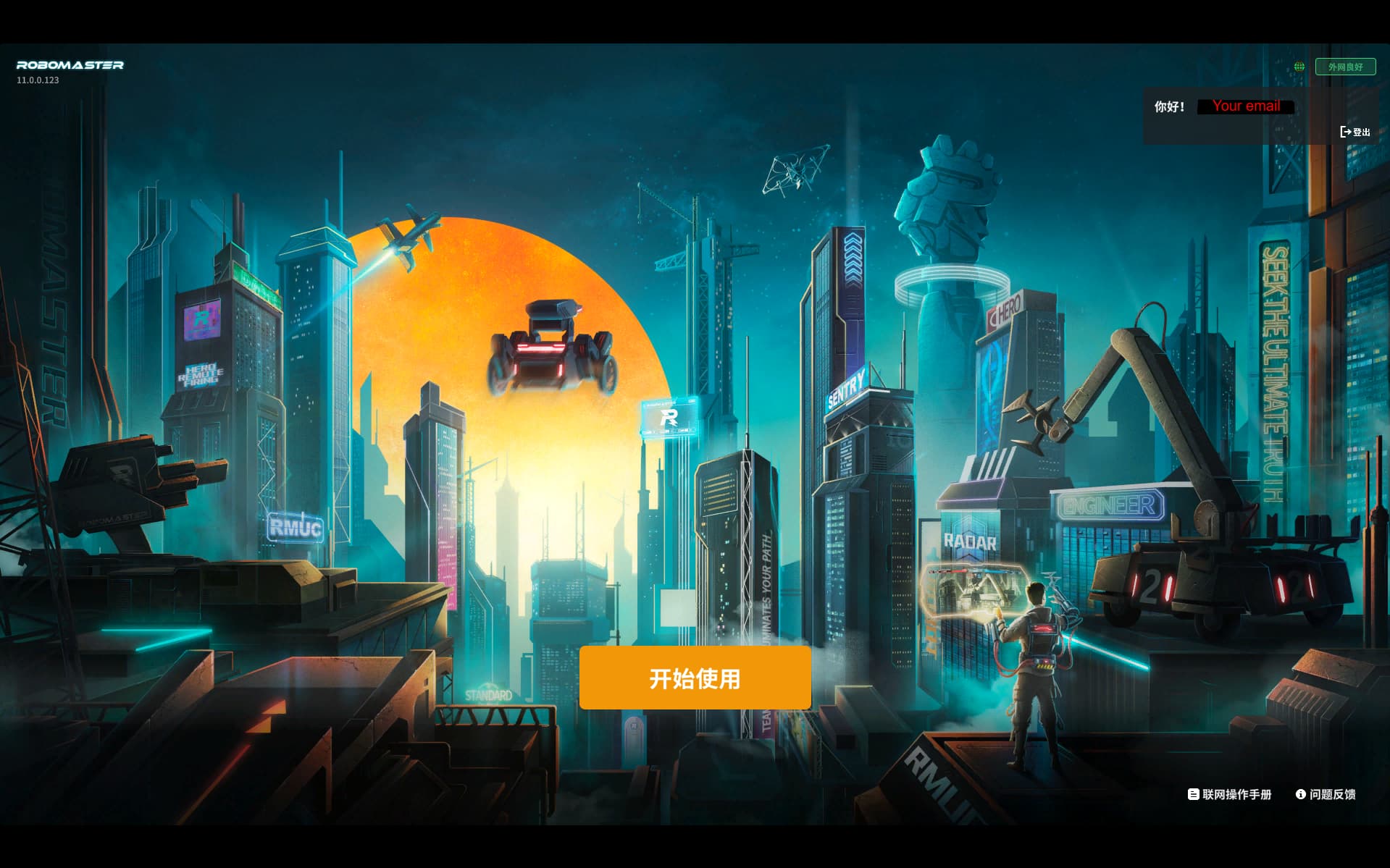
After you sign in (or if you were lucky enough it didn’t want you to sign in) you will see this page, click the big orange button
-
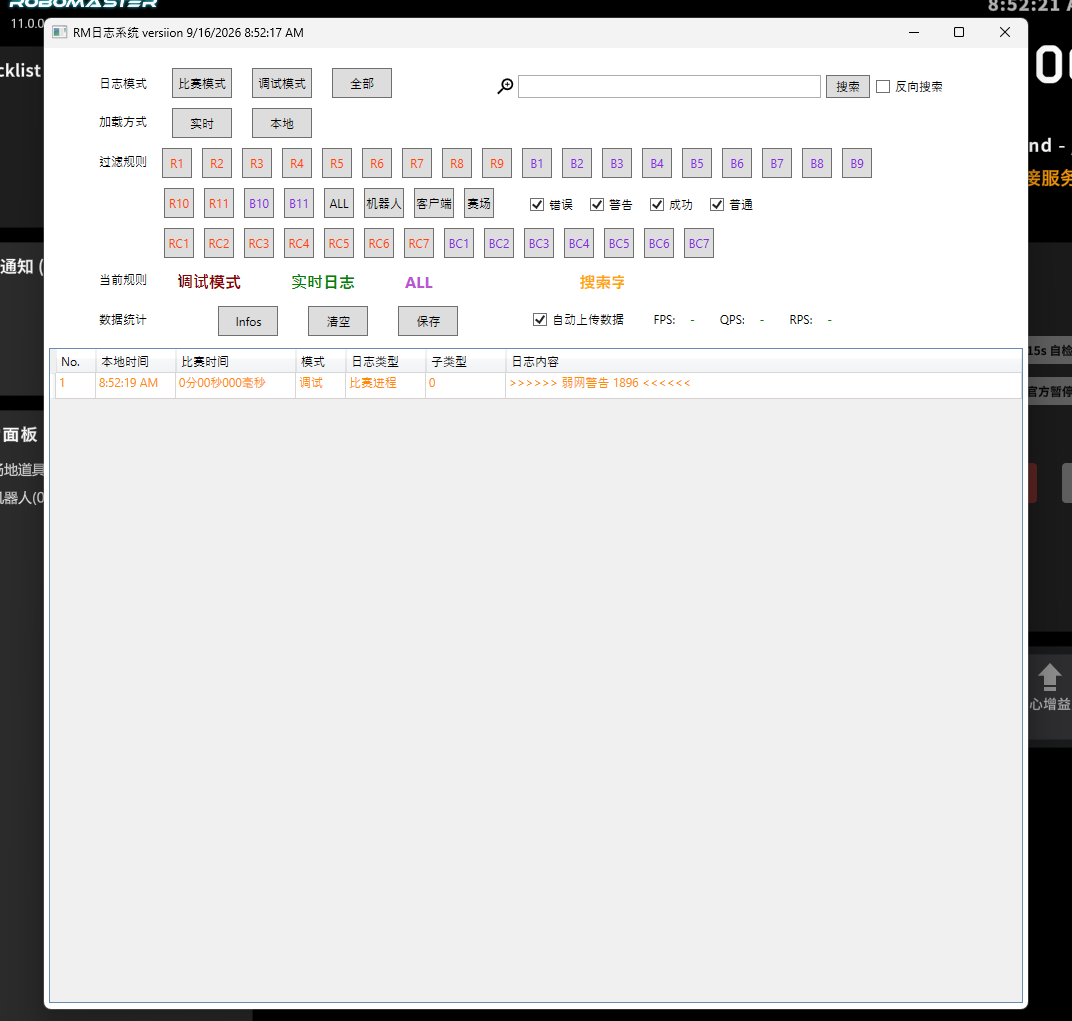
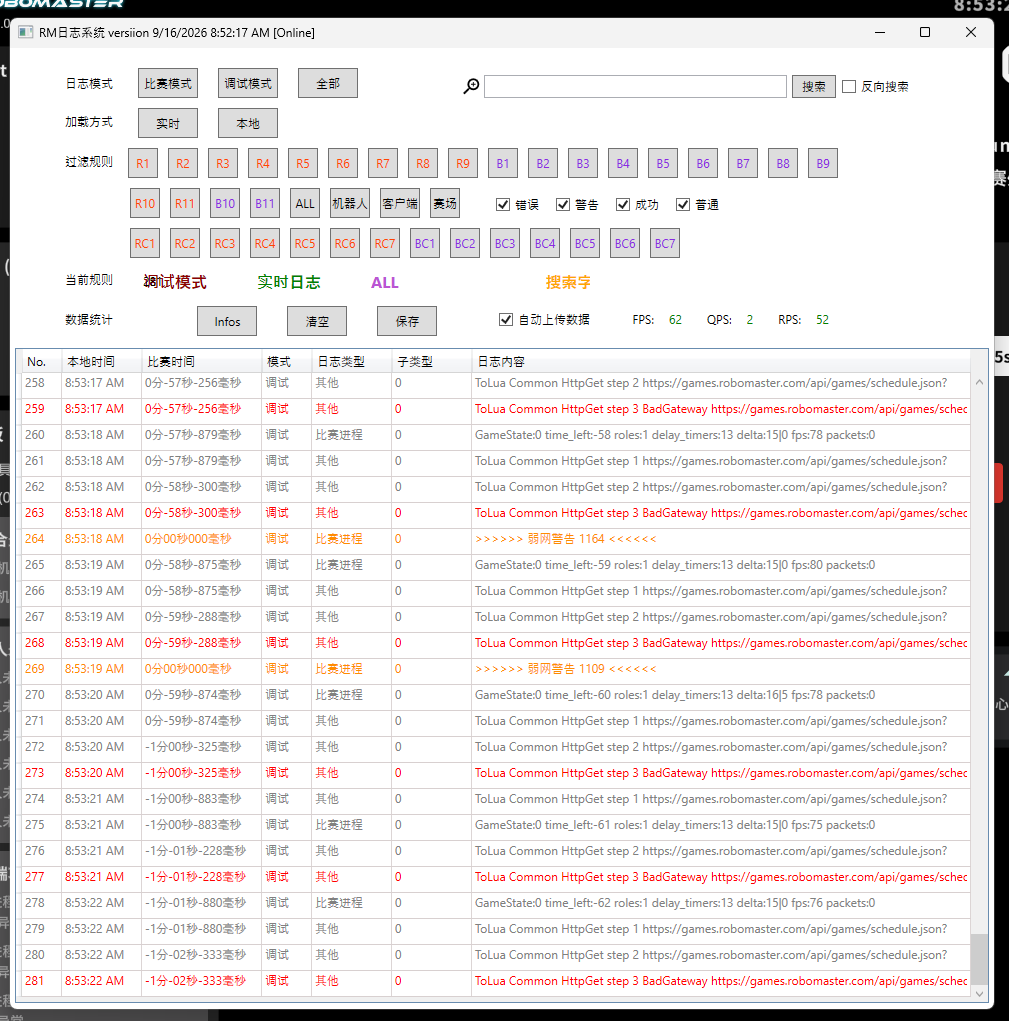
After pressing the orange button, like 84 command prompts will appear and disappear, the popup you care about it is this one, which will (hopefully) say [Online] after a few seconds:
-
Once it says [Online], turn on your mobile hotspot and connect robots and clients to it.
-
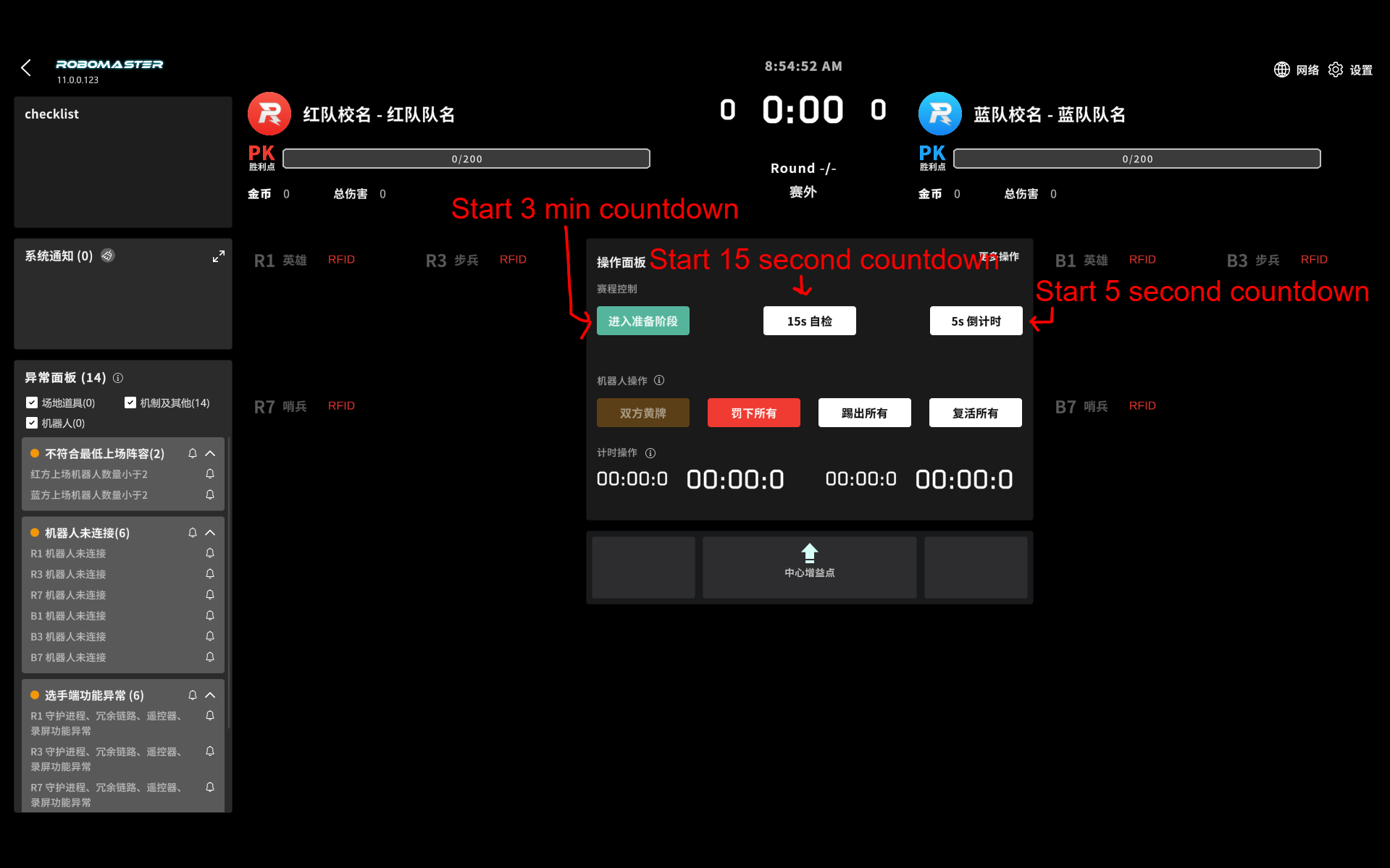
To start a match, click 3 min, 15 second, or 5 second. Usually I do 5 second because halfway through the 15 second countdown it will show a popup if there aren’t all 6 robots. Clicking 15 or 5 second will show a popup, click the right red button.
-
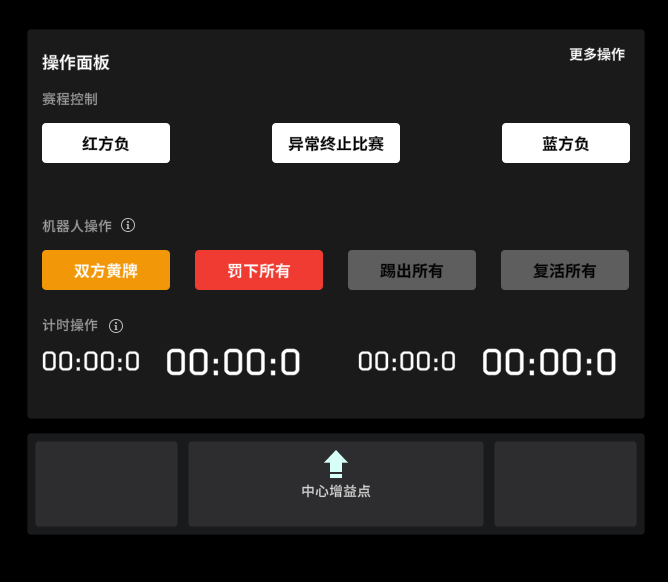
To end a match early, click any of the top 3 buttons. Top left will make blue win, top middle will make a tie, top right will make red win.
-
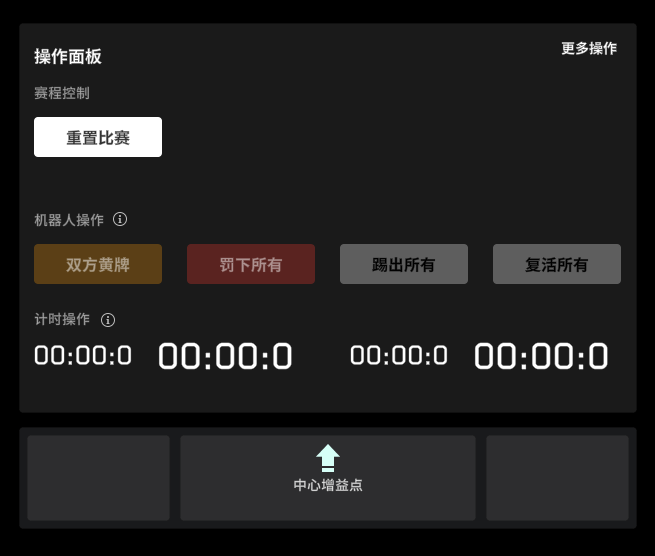
When a match ends (either by time running out, victory points, or by stopping it early) you need to press the single left button to allow new robots to join and to start a new match.
-
When you are done with the server (or it decides to kill itself and bring you back to step 1), run this
close.bat. You should put this in the same folder as the exe for using it later. This close.bat doesn’t close the main ui of the server, so it will need alt-f4. But it does close all of the stray processes still running from the server. If you want to be certain no more processes are running, restart your computer.close.bat (278 Bytes)

Changing 25 server config
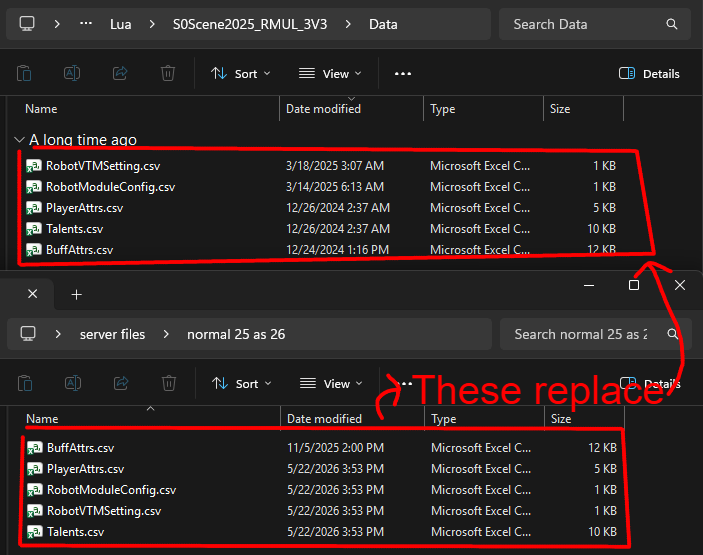
After you have extracted the server, the config files (for robot health, heat limit and cooling, etc) are in this path:
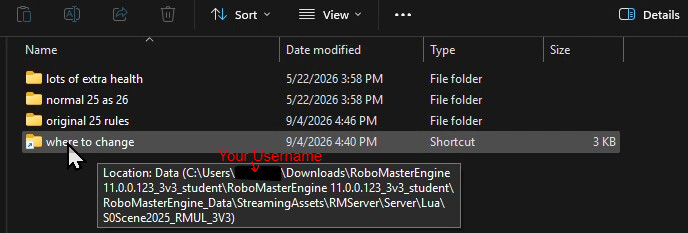
I have a shortcut to that location and I would recommend you making one.
It is probably a good idea to stop the server if it is running before you change these files.
Here are the 3 config folders in the screenshot. lots of extra health is good for testing accuracy (like in the final assesment), because robots can just soak up a lot of damage without dying. normal 25 as 26 is 26 server rules of health and heat and no level ups in the 25 server. It is normal because it doesn’t have extra health applied. original 25 rules is what the 25 server has before you change it in case you want to go back.
config files.zip (15.9 KB)
Replace the 5 files in the S0Scene2025_RMUL_3v3 > Data folder with the 5 files in one of the folders from the zip. They are all csv files, so if you want to try to make your own set of files you can.